Photo Story — the trip your family and friends can follow
Add photos to any day you write up, and share the whole trip as a photo journal the people at home can open without an account. Until today this was something you had to ask us for and wait on. Now it is a button.
Turn it on yourself
Open any day in your trip log. Under the story you write for that day there is now a Photos card with a single button: Turn on photos. Press it and the uploader appears where the card was.
None of this is new code meeting the water for the first time. Photos have been quietly running on a handful of boats since May — more than thirteen hundred of them, and over six hundred on one boat alone, across a whole season of writing days up.
Photos that stay with the day
Add up to fifteen photos to any entry, while you are writing the day up or long afterwards, going back to a day you saved weeks ago. Each one takes a description if you want to give it one.
iPhone photos work exactly as they come off the phone — HEIC and all. Every photo is converted in your browser before anything is sent, so a big camera photo does not cost you a big upload on marina wifi. On a phone there is a Take photo button that goes straight to the camera.
Reorder the photos whenever you like, remove one, or move it to a different day if it ended up under the wrong one.
The Send-off
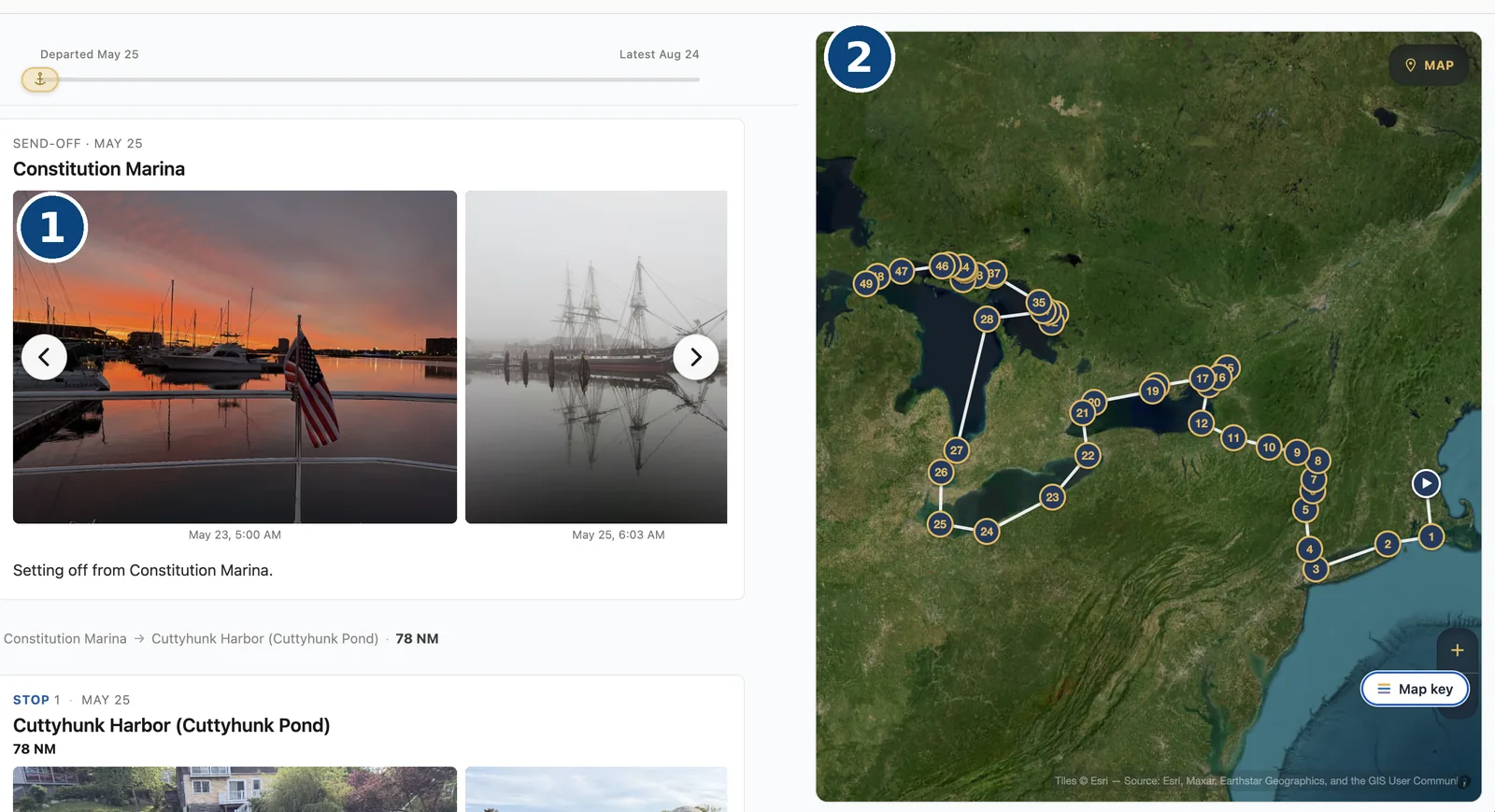
The photos from before you cast off do not belong to any one day — the home marina, the dock party, the people waving you out. They have their own place on My Trip, called Send-off, with a short note of its own, and they open your story ahead of your first stop.
Share it with people who have no account
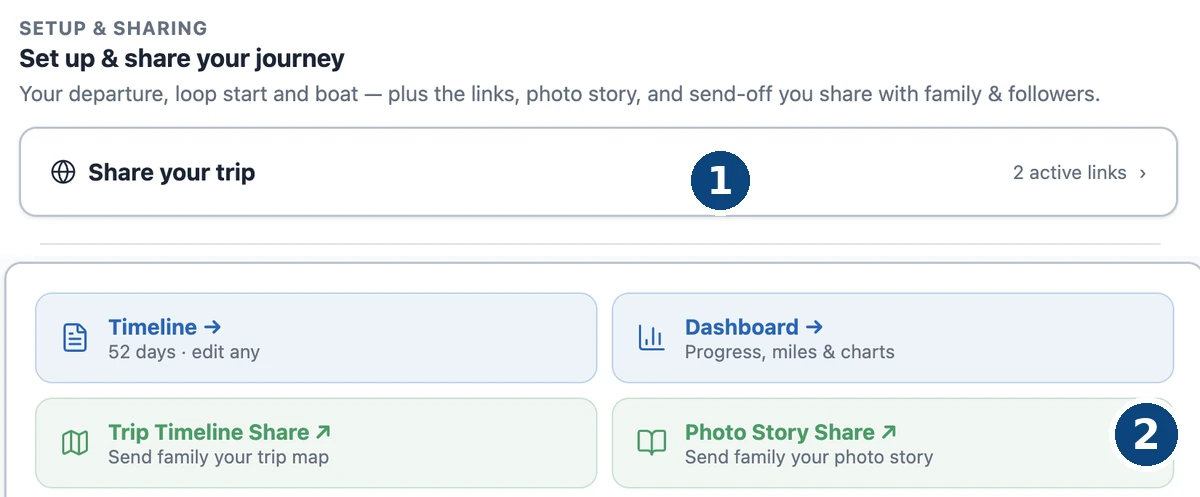
On My Trip, open Share your trip and press Create share link. Copy it and send it to whoever you like — they just open it. No account, no password, nothing to install. Grandchildren included.
What they get is your route drawn on a satellite map beside a scroll of your trip: each stop with its dates, the write-up of the day, and your photos in a row they can tap to fill the screen. Paste the link into a message and it arrives as a picture of your trip rather than a bare address.
Choose the picture they see first
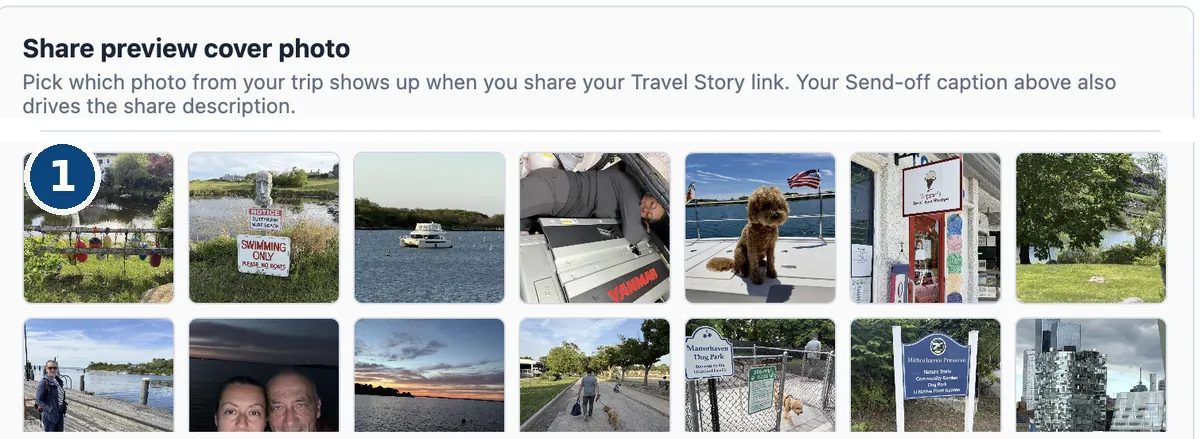
That photo is not left to chance. Under Share your trip, Share preview cover photo lays out every picture on the trip and lets you tap the one you want people to see first — the sunrise, the dog on the foredeck, whichever one is the trip to you.
Pick nothing and we still choose sensibly: the first Send-off photo, or failing that the first photo of your first day.
And you can take it back
Under Share your trip on the same page, Preview opens the exact page your recipients see, so you can look before you send. Revoke stops the link working straight away. Rotate URL keeps sharing switched on but issues a new address, which is the one you want if a link has travelled further than you meant it to — the old address stops working, and you send the new one to the people you actually meant.
One thing we never show
Cameras write a location into every photo they take. We never put it on the page — not on the story your family opens, not anywhere in the app. Where you have been is yours to tell in your own words, and a photo of a quiet anchorage should not be an address.